
Managing RFID data doesn’t have to be complicated. As more businesses adopt RFID tags for inventory tracking, asset management, and access control, a common question appears in Google search trends:
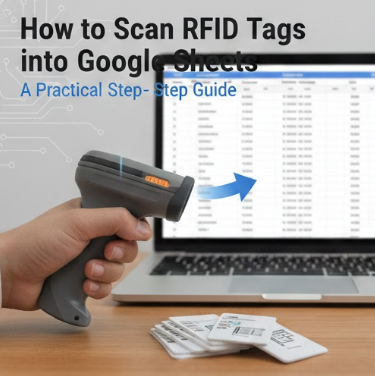
How do you scan RFID tags directly into Google Sheets?
The good news: it’s easier than most people expect. In this guide, you’ll learn simple, proven methods to connect RFID scanning with Google Sheets, even without advanced technical skills.
Why Scan RFID Tags into Google Sheets?
Google Sheets has become a popular lightweight database for RFID projects—especially for small and medium-sized businesses.
Key benefits include:
-
✅ Real-time data updates
-
✅ Cloud-based access from anywhere
-
✅ Easy sharing and collaboration
-
✅ No expensive software licenses
According to industry reports, over 60% of RFID pilot projects start with spreadsheet-based data collection before scaling to ERP or WMS systems. That’s why Google Sheets is often the first choice.
What You Need Before Getting Started
Before scanning RFID tags into Google Sheets, prepare the following:
1. Rfid tags
Choose the right type based on your use case:
-
LF / HF (13.56 MHz NFC)
-
Uhf (860–960 MHz)
High-quality RFID tags ensure stable and accurate reads.
2. RFID Reader
Common options include:
-
USB RFID readers (keyboard emulation)
-
Bluetooth RFID readers
-
Mobile RFID readers (Android/iOS)
3. Google Account
You’ll need access to Google Sheets and optionally Google Apps Script.
Method 1: RFID Reader as Keyboard Input (Easiest)
This is the most beginner-friendly solution.
How It Works
Many RFID readers act like a keyboard:
-
Plug in the RFID reader via USB
-
Open Google Sheets
-
Click on a cell
-
Scan the RFID tag
-
The tag ID appears instantly in the cell
Best For
-
Small projects
-
Attendance tracking
-
Simple asset lists
✅ No coding required
Method 2: Using Google Apps Script (More Control)
For automated workflows, Google Apps Script is powerful.
Typical Use Case
-
Auto timestamping
-
User identification
-
Data validation
-
Triggering notifications
Example Workflow
-
RFID reader sends tag ID to a web app
-
Google Apps Script receives data
-
Script writes data into Google Sheets
This method is ideal for high-frequency scanning environments like warehouses or labs.
Method 3: Mobile RFID + Google Forms
A smart workaround many teams use:
| Tool | Purpose |
|---|---|
| RFID Mobile Reader | Scan tags |
| Mobile App | Send tag ID |
| Google Forms | Capture data |
| Google Sheets | Store responses |
Each form submission automatically populates a new row in Google Sheets. Simple, flexible, and cloud-native.
Common Challenges (and How to Avoid Them)
-
Missed reads → Use reliable RFID tags with strong antenna design
-
Duplicate entries → Add validation rules in Sheets
-
Slow scanning → Optimize reader power and distance
High-quality RFID hardware can improve read accuracy by 30–40%, especially in dense environments.
Best Practices for Reliable RFID Data Collection
-
Use consistent RFID tag encoding formats
-
Test read range before deployment
-
Lock tag data if security matters
-
Label columns clearly in Google Sheets
These small details significantly improve long-term usability.
Final Thoughts: Start Simple, Then Scale
Scanning RFID tags into Google Sheets is a practical, scalable first step in any RFID deployment. Whether you’re tracking inventory, managing assets, or logging access events, this setup gives you fast results with minimal cost.
If you’re looking for reliable RFID tags, technical guidance, or custom solutions, Leadercolor is here to help.
👉 Kusangana Mutungamiriri today to find the right RFID tags for your project—and make your Google Sheets workflow smarter from day one.